Customise and organise your categories
Find categories faster, change their order and colours, hide unused choices and understand what happens when you move a category.
Your category list does not have to look the same as everyone else's. You can make the categories you use easier to find, hide choices you do not need and organise related costs together.
For example, you might want your everyday spending near the top, or a custom category for a cost that matters to you. You do not need to reorganise everything at once.
Find the category settings
Open Organise, then choose Categories. On a phone, use the section menu to switch between categories, merchants, tags and rules. On a wider screen, these appear as tabs.
This is where you manage the category list. To change the category of a particular payment, open that transaction in Activity instead.
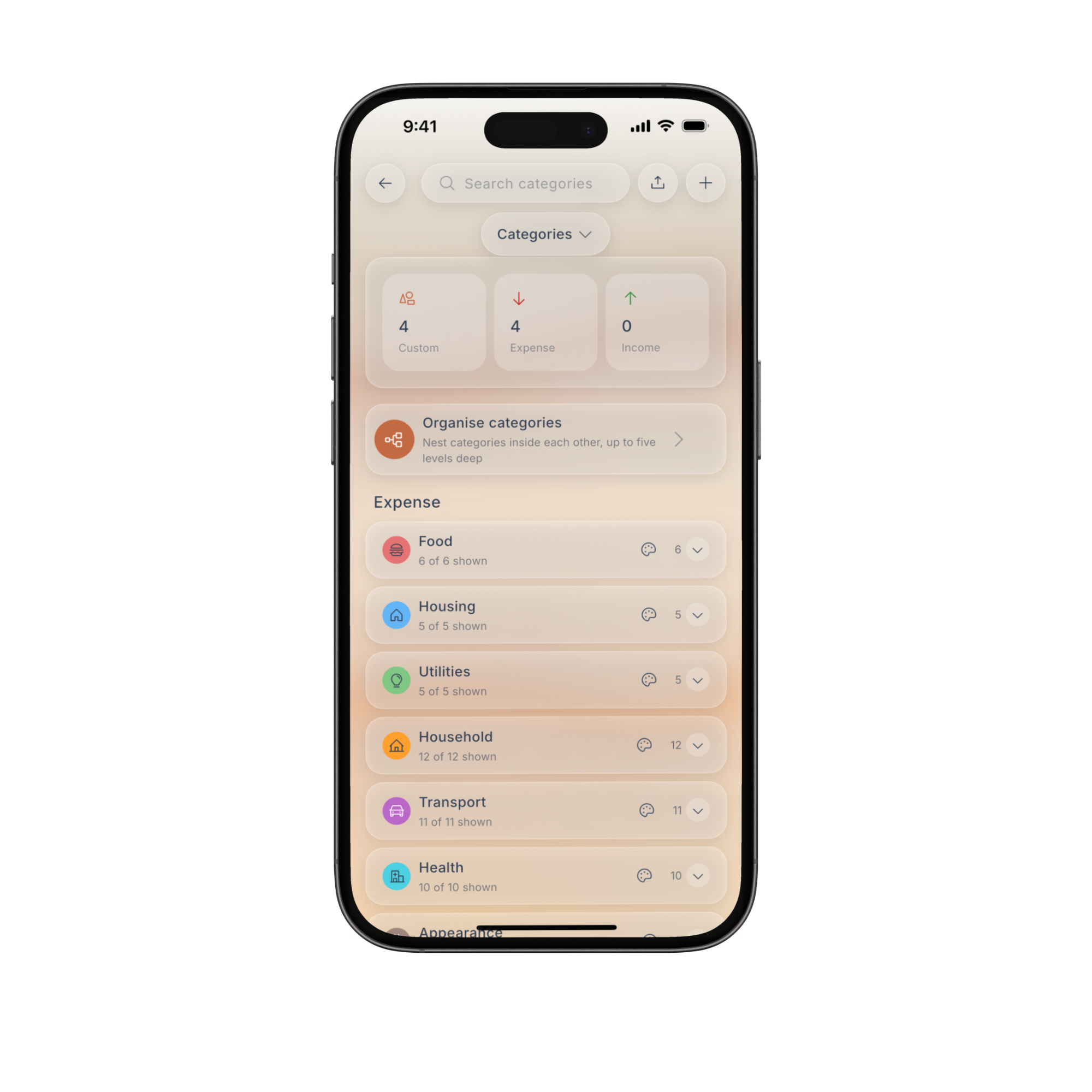
Search instead of opening every group
Use Search categories and enter part of the category's name. Search checks both built in and custom category names, as well as group names.
For example, search for a category you already use before creating another one with a similar name. Clear the search to return to the full list.
There is also a search inside Organise categories. It works slightly differently: it jumps to the first matching category, opens the groups above it and highlights matches. It keeps the surrounding categories visible so you can move the category without losing your place.
Put categories in an order that makes sense to you
- In Categories, open Organise categories.
- Choose Spending, Income or Transfers.
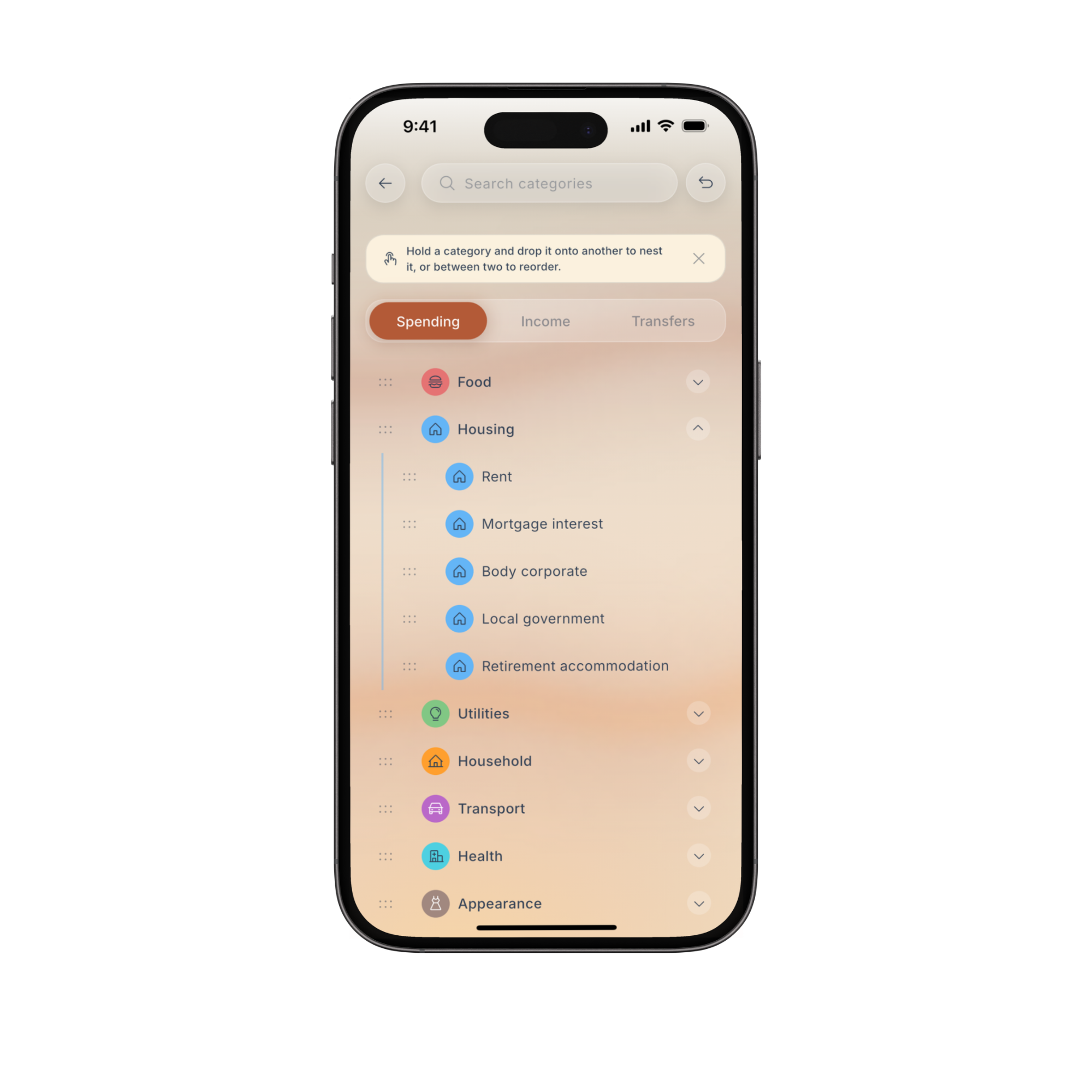
- Press and hold a category, then drag it between two rows to change its order.
- Choose Save changes when you are happy with the layout.
For example, move the categories you check most often nearer the top rather than scrolling past rarely used ones each time.
Until you save, you can choose Discard changes to leave the saved layout as it was.
Group related categories together
You can also drop a category onto another category to place it inside that category. Fireball supports up to five levels and only allows compatible placements.
Think of a parent category as a folder, with related categories inside it. You might use a custom parent called Pet care to keep separate pet costs together, while still being able to see each one.
Moving a category into another category is not the same as simply changing its position in a list. It can change what a parent budget includes.
If Fireball asks Change what budgets cover?, read the message before saving. Parent budgets include the categories inside them, and past spending uses the new structure. The change does not alter your budget limits, saved plans or settled rollover amounts.
If Fireball reports overlapping budgets, resolve the budgets it names before trying to save again. Do not delete transactions to fix a layout problem.
Hide categories you do not use
In Categories, open the relevant group and turn off the switch beside a category you do not want in new category choices.
Hiding is useful when a category is valid but not relevant to you. It keeps the choice out of the way without deleting its transactions, rules or reporting history.
To bring it back, find it in Categories and turn its switch on again.
Two details are worth knowing:
- Hiding a parent also hides the categories inside it. Show the parent again before changing those children's switches.
- Categories marked Always shown cannot be hidden. Tap the information button to see why Fireball needs them.
Hiding is not a way to stop a transaction from counting as spending. For that, check whether the transaction has the correct category.
Change category colours
Tap the palette button beside a group in Categories to choose a colour for that group and its categories. This can make familiar groups easier to recognise.
Where Use default is offered, choose it to return that group to its original colour.
A colour change is visual. It does not change a transaction's amount, category or financial treatment.
Create or edit a custom category
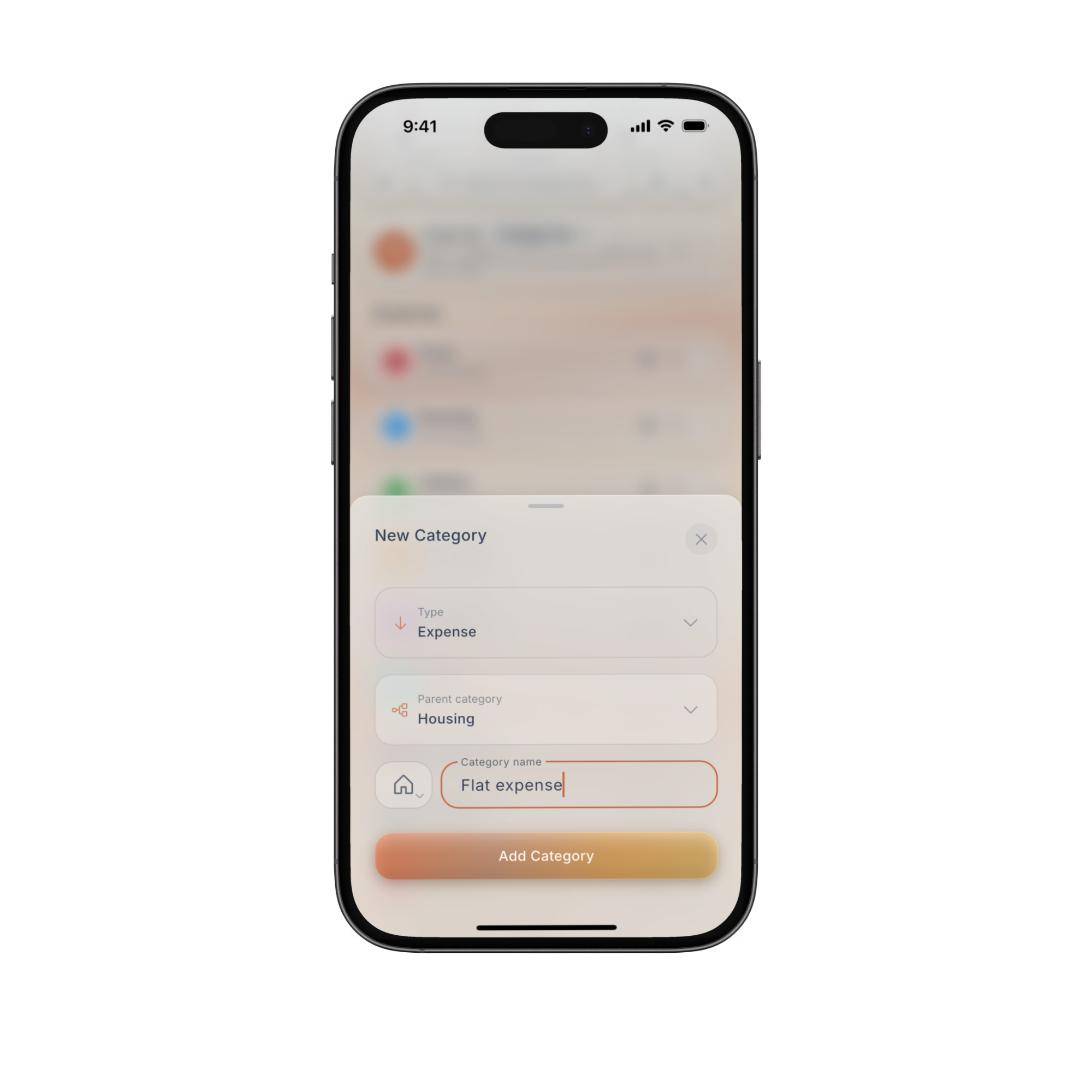
Use + in Categories when the existing choices do not describe something you want to track separately. For example, a specific hobby may deserve its own category if you want to budget for it and review it over time.
Enter a Category name, choose an icon and check Parent category to decide where it belongs. For example, a custom category inside a broader spending group can be easier to find than a separate category at the top of the list. Choose Add Category to save it.
Open a custom category's edit control to change its details. Check the review prompts carefully if you change its financial treatment or where it sits.
Use a tag instead when you only want to group transactions for an event or project. A Holiday tag can bring together flights, meals and accommodation without replacing their categories.
For changing individual transactions, tags, splits and automatic rules, see Organise and correct your transactions.
Common questions
Why can I see categories I did not create?
The Categories screen includes Fireball's built in categories as well as your custom categories. It is not just a list of categories you added yourself.
Why is a category's switch unavailable?
Check whether it says Always shown, or whether it is hidden with its parent. If neither explains it and you should have editing access, contact support.
Can I undo a layout change?
Before saving, use Discard changes. After a successful save, use Undo if it is still offered in the confirmation message.
If you want to return to the original structure, Reset to default layout is available when there is a saved custom layout. It moves categories back to their default places and does not delete them. Review any budget coverage warning before confirming.
Will resetting the layout reset the colours too?
Layout and colours have separate controls. Use the layout reset for category positions and Use default for a group's colour.
Why can I view the layout but not rearrange it?
The layout screen can be available for viewing even when structural editing is not enabled. Viewer access to someone else's finances also does not allow changes. If editing should be available but is not, contact support rather than recreating your categories.
Can I delete a custom category instead of hiding it?
Yes, but use hiding if you only want a shorter list. Deleting has a review step because transactions and other items may use that category. Transactions are kept, but their category assignments may need a replacement.
If the category has subcategories, move those first. Follow the review screen for any linked budgets before confirming deletion.
Still need a hand?
Browse the Help Centre or contact support and we will help you find the next step.