Find and manage your merchants
Search and sort merchants, use familiar names, archive unused entries and see the transactions behind a merchant total.
A merchant is the business or person a transaction is associated with. A category describes what the money was for. For example, your supermarket is the merchant, while Groceries is the category.
The merchant list helps you find a business, review your activity with it and tidy up how its name appears. You do not have to search through individual payments every time.
Open your merchant list
Open Organise, then choose Merchants. On a phone, use the section menu if another Organise section is showing. On a wider screen, choose the Merchants tab.
Use Search merchants to find a name. If you have given a merchant a preferred name, Fireball can search its display names, including the provider name, too.
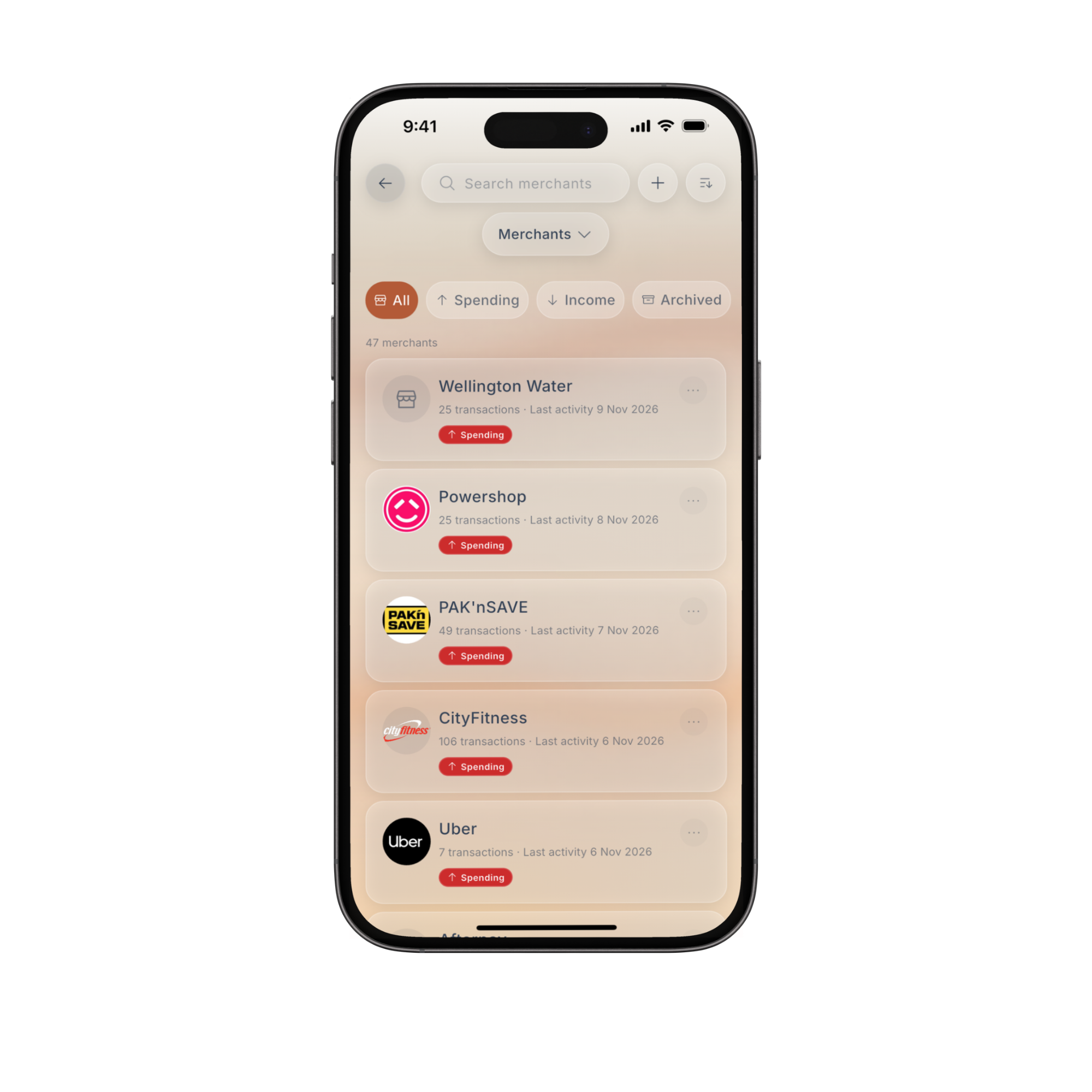
Use filters and sorting for different questions
The filters change which merchants you see:
- All shows merchants that are not archived.
- Spending shows merchants associated with spending.
- Income shows merchants associated with income.
- Archived shows entries you have put away.
The sort menu changes their order:
- Recent activity helps you find a business you used recently.
- Oldest activity brings merchants whose latest activity is older towards the top.
- Most activity sorts by transaction count, not the amount you spent.
- Monitored first brings merchants with monitors towards the top.
- A to Z makes the list easier to browse by name.
For example, use Spending with Recent activity to find yesterday's café. Use Most activity when you want to see which businesses appear most often, rather than assuming the busiest merchant is also the most expensive.
Give a merchant a name you recognise
If a provider's merchant name is unfamiliar or awkward, you can change how it is displayed:
- Open the actions beside the merchant.
- Choose Rename or Rename or reset.
- Enter a Preferred name.
- Choose Save name.
The name sheet shows the latest provider name as a reference. For example, you might use the familiar shop name instead of a name you do not recognise from your statement.
This changes the label, not the merchant's identity. It does not change transaction amounts, totals or rules, and it does not merge separate merchants.
To return to the provider's name, open Rename or reset and choose Reset name.
Custom merchants have their own edit sheet. Rename lets you edit their name, icon and colour.
Put unused merchants away without deleting activity
If you no longer need a merchant in the main list, open its actions and choose Archive.
For example, you might archive a shop you no longer use so it does not clutter your directory. Archiving does not delete its transactions or remove them from your financial totals.
To bring it back:
- Choose the Archived filter.
- Find the merchant.
- Open its actions and choose Restore.
You can also use Undo if it is still offered immediately after archiving.
See what is behind a merchant total
Tap a merchant to open its detail page. Choose the period you want to review. If the merchant has both spending and income, use the relevant tab.
Use View all activity to open the transactions behind that selected view. This is useful when a total seems higher than you remember: inspect the actual payments before changing anything.
Tap the information button beside the total to open How this total is calculated. It explains the selected period and what is included.
Merchant totals are not simply every bank entry with that name:
- Completed activity is counted, not pending transactions.
- For spending, refunds reduce the total.
- Your share of split transactions is counted.
- Transfers, investments and transactions without a merchant are excluded.
- If some currencies cannot be converted, the total can be incomplete.
For example, a purchase followed by a refund can produce a lower spending total than the original purchase amount. That is a reason to inspect the activity, not add the purchase again.
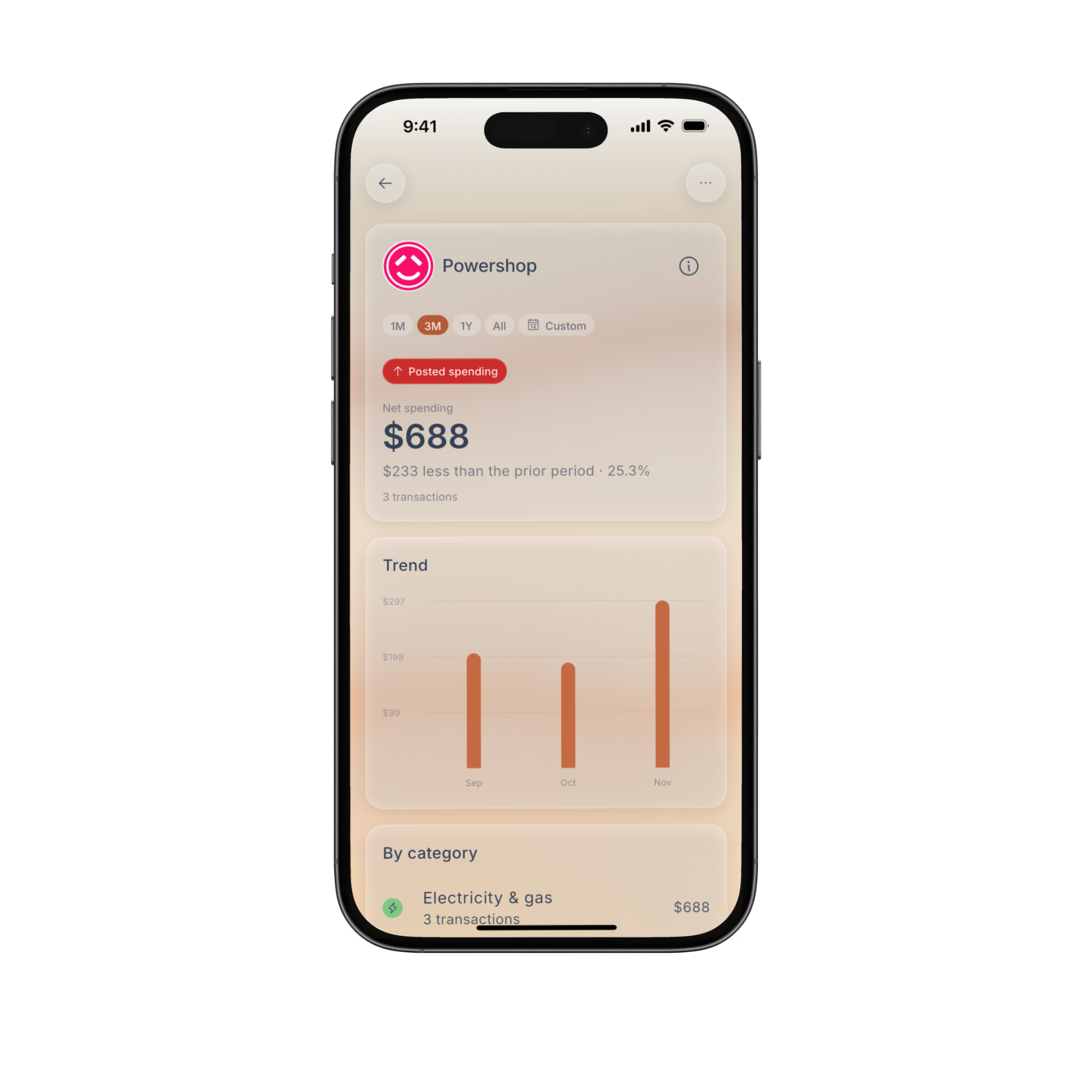
Keep an eye on a merchant
On a merchant's detail page, choose Monitor merchant if you want to set up a monitor for it. If one already exists, the action becomes Edit monitor or Restore monitor.
This is different from a transaction rule. A monitor helps you watch activity. A rule tells Fireball to make changes to matching transactions, such as setting a category or adding a tag.
For rules and corrections to individual transactions, see Organise and correct your transactions.
Common questions
A merchant has disappeared. Where should I look?
Clear the search and check the selected filter. Then choose Archived to see whether it was archived. Restoring a merchant does not require importing its transactions again.
Does renaming a merchant combine it with another one?
No. Giving two entries the same display name does not make them one merchant. If the transactions appear to be assigned to the wrong merchant, contact support rather than assuming a rename will fix the assignment.
Why does the merchant total not match my account's total spending?
The merchant page covers one merchant, a selected period and the chosen spending or income view. Your account total can cover other merchants and different activity. Check the period, open the calculation explanation and use View all activity to compare the underlying transactions.
Does Archive stop future payments to that merchant?
No. It only changes the merchant directory. It does not cancel a subscription, stop a bank payment or contact the business.
Still need a hand?
Browse the Help Centre or contact support and we will help you find the next step.